
How to Export Your Palettes for Figma and Adobe XD
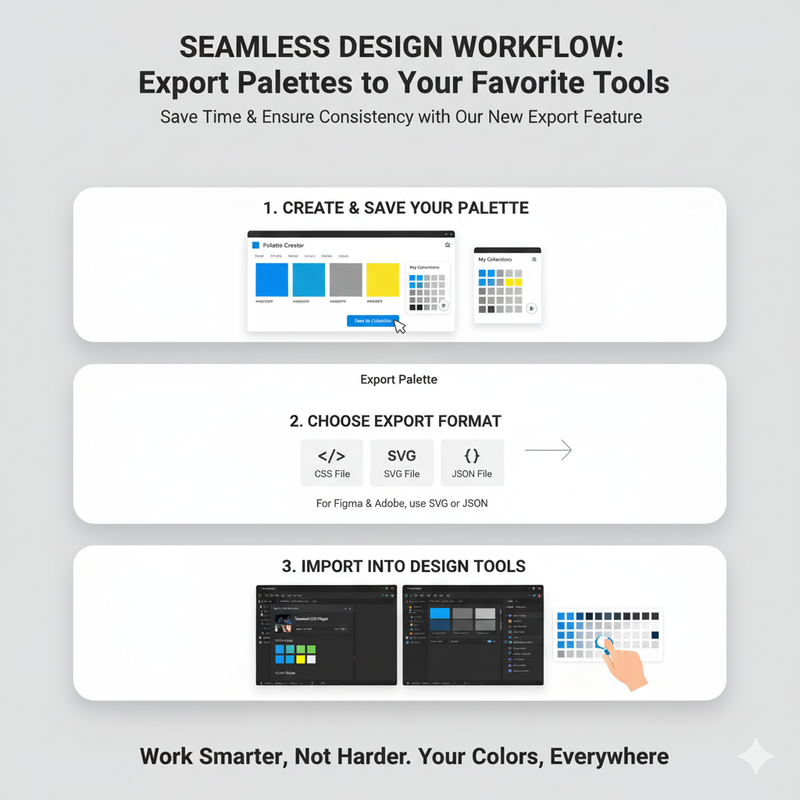
Streamline your workflow with our new export feature. This guide walks you through how to export your saved color palettes directly into your favorite design tools. As designers, we know how important it is to have a seamless workflow. You don't want to waste time manually copying and pasting hex codes from one tool to another. That's why we've added a new feature that allows you to export your color palettes directly into the design tools you use every day: Figma and Adobe XD. This feature is designed to save you time, reduce errors, and ensure brand consistency across all of your projects. Here’s a step-by-step guide on how to use it. First, create your color palette using our Palette Creator tool. You can add colors, reorder them, and refine them until you're happy with the result. Once you've created your palette, you can save it to your personal collection. This will allow you to access it later and sync it across all of your devices. Next, from your collection, you'll see an 'Export' button for each palette. Clicking this button will open up a dialog with several export options. You can export your palette as a CSS file, an SVG file, or as a JSON file. For Figma and Adobe XD, you'll want to use the SVG or JSON options. To import into Figma, you can use a plugin like 'Tailwind CSS'. This plugin can import colors from a JSON file. Simply export your palette as JSON, then use the plugin to import the colors into your Figma file. This will create a new set of color styles in your Figma document that you can use throughout your design. For Adobe XD, you can use the 'Stark' plugin, which allows you to import palettes from a JSON file. Another way is to use SVG. You can export the palette as an SVG, which creates a file with rectangles of each color. You can then import this SVG into Figma or XD. From there, you can use the eyedropper tool to add the colors to your document's color library. This new export feature is all about making your workflow more efficient. We want you to spend less time on tedious tasks and more time on what you do best: designing. We're constantly working on new features to improve our tools and help you work smarter. We hope you find this new export feature useful. Let us know if you have any feedback or suggestions for other integrations you'd like to see in the future.